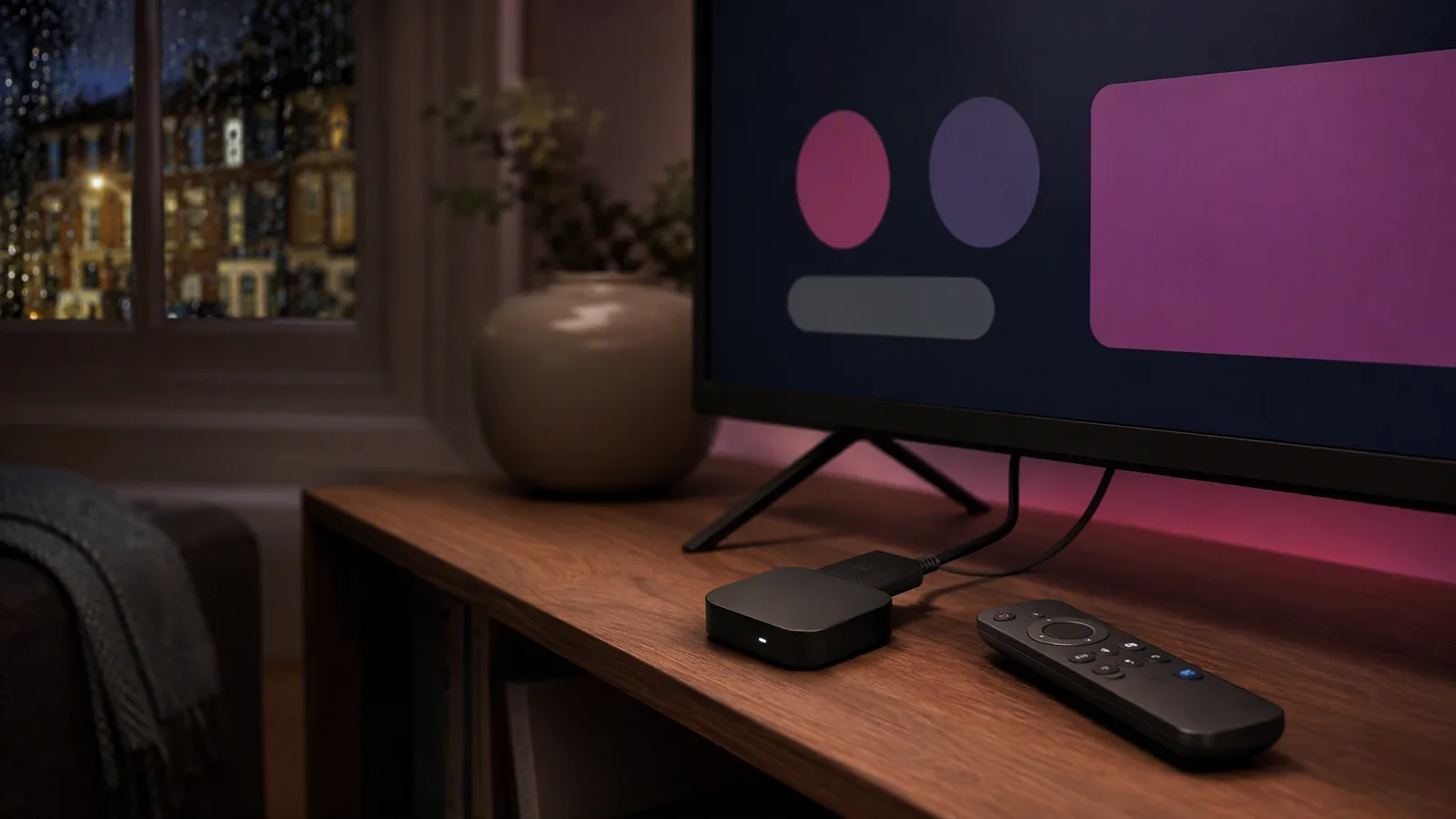
Amazon Fire TV devices are popular for streaming because they are compact and work with many UK televisions. Setting up IPTV on one is usually a process of preparing the device, choosing a compatible player and entering the details supplied by your subscription provider. It is not a reason to bypass security protections or install software from an untrusted source.
Menus and options vary between Fire TV models and software versions, so treat any generic click-by-click instructions as a starting point rather than a promise about your exact screen. Amazon’s own help pages should guide the initial device setup and app-store process. Your IPTV provider should then explain which player and sign-in method it supports.
1. Confirm the device and subscription method first
Before ordering, identify the exact Fire TV device you own. “Fire TV Stick” covers several generations and variants with different video, Wi-Fi and performance capabilities. You can usually find the model information in the device settings or on the original packaging. If you are buying one, check the current manufacturer specification rather than relying on a marketplace title.
Ask the IPTV provider which app it recommends, whether that app is available in the UK Amazon Appstore and what information activation requires. Some services use account credentials, while others use a playlist or another supported method. The distinction matters because the setup screens differ, and an app that works for one method may not work for another.
A compatible app does not automatically make every television capable of 4K. Check the Fire TV model, television resolution, HDMI port and content source. If your goal is simply stable Full HD viewing, say so when requesting help; it can make the setup and troubleshooting more straightforward.
2. Connect the hardware and complete official setup
Connect the Fire TV device to a suitable HDMI port and provide power using the manufacturer’s recommended adapter and cable. Select the corresponding HDMI input on the television. A television’s USB port may not provide the power arrangement Amazon recommends, so use the documented setup rather than assuming every available socket is suitable.
Follow the on-screen instructions to pair the remote, select language, join Wi-Fi and sign in to the relevant account. Install available system updates before adding streaming apps. Updates can take time and may require a restart, so complete them before diagnosing a subscription problem.
For model-aware instructions, use Amazon UK’s Fire TV setup help. If the remote will not pair, the device has no network access or the system cannot complete registration, resolve those device-level issues first. IPTV support cannot replace the manufacturer’s initial hardware setup.
3. Test the network where the television is located
Do not judge the connection from a phone held next to the router. The Fire TV device may be behind a television, near other electronics and much farther from the router. Run a network check on the device and, where practical, test playback at the time you normally watch.
For planning, allow roughly 10–15 Mbps of consistent capacity for Full HD and at least 25 Mbps for 4K, with additional headroom for other household activity. These are starting allowances rather than fixed requirements for every stream. If another person is gaming, downloading or video calling, the capacity available to the television can change quickly.
If the network is weak, try suitable router placement or a compatible wired solution before buying a faster broadband package. Ethernet can be an excellent diagnostic tool, although some Fire TV devices require a specific adapter. Our UK IPTV internet-speed guide walks through Wi-Fi, Ethernet and buffering tests in more detail.
4. Choose a legitimate, compatible player
The safest starting point is the official Amazon Appstore and the provider’s documented recommendation. Search for the exact app name and check its developer, description, permissions, recent updates and device compatibility. Similar names and unofficial clones can make a quick search misleading.
Compare the players and verified codes in our UK IPTV apps and downloads centre. Amazon’s app-download guidance explains the standard process for Fire TV. If an app is not offered for your device or region, do not assume that an unknown download is the correct solution. Ask the provider whether another supported player or device is available.
Be cautious with instructions to install unrelated “security” certificates, device-management profiles or modified system packages. A normal streaming setup should be explainable in plain English. If you do not understand why a permission is needed, pause and verify it with the app developer or a trusted technical adviser.
Check what the player does—and does not—provide
An IPTV player is often only the software used to organise and play a subscription. Installing it does not necessarily include channels, films or activation. Read the app description to see whether content is supplied separately and whether the developer has any relationship with your subscription provider.
This distinction helps when something goes wrong. If the app crashes before you can sign in, the app developer or Amazon’s device guidance may be the right starting point. If the app opens but your subscription is rejected, the service provider should check activation. If only one programme fails while the rest of the catalogue works, report the content-specific fault.
Also check whether the player is a one-off purchase, a subscription or free with optional features. Those are app-level terms, separate from the NOVA TV plan price. Understanding both prevents confusion at renewal time and avoids paying for a feature you did not intend to use.
5. Enter subscription details privately and accurately
Once the supported player is installed, follow the provider’s activation instructions exactly. Account fields can be case-sensitive, and an extra space copied at the beginning or end of a username can cause a sign-in failure. Enter details on the intended device rather than posting them in a group chat or public support thread.
Your IPTV credentials are not the same thing as your Amazon account password, Wi-Fi password or payment card details. A support agent should not need all of those to activate a player. Share only the information required by the documented method, and never disclose payment card security codes or unrelated account passwords.
Keep the activation date, plan name and a private record of the support conversation. If someone else sets up the device for you, ask them to explain what they installed and remove their remote access when the work is finished. When troubleshooting with NOVA TV, describe the app and error message without sending full server addresses or credentials.
6. Configure playback without overcomplicating it
Start with the player’s default settings unless the provider recommends a specific option. Changing decoders, buffer sizes and video modes all at once makes it difficult to identify what helped. If the app offers hardware and software decoding, test one option at a time on the same content and keep a note of the result.
Check the Fire TV display settings and television input if the picture looks wrong. Automatic settings are often a sensible baseline, but the available modes depend on the equipment. A 4K interface does not prove that every programme is 4K, and forcing an unsupported refresh rate can introduce a blank screen or unnecessary flicker.
For audio problems, confirm the television or soundbar input and test another app. If only one channel is out of sync, report that specific pattern. If every app has the same delay, investigate the television, soundbar and device audio settings before blaming the IPTV subscription.
7. Organise the app for everyday viewing
A large catalogue becomes easier to use when you create favourites and learn the category structure. Add a small set of regularly watched channels rather than hundreds, and test search with both programme and film titles. If the player supports an electronic programme guide, allow time for it to load before assuming the guide is missing.
Explore subtitle and audio-track controls using content you know well. Availability varies by source and player, so do not assume every film offers every language. Where children use the device, review Amazon’s available parental controls and app settings rather than relying on a claim that the subscription has a particular profile feature.
Keep the remote path simple for other members of the household. Put the chosen player where it is easy to find, remove apps you no longer use and write down the basic steps for returning to live television. Small usability improvements can matter more than an impressive catalogue total.
8. Fix common problems by narrowing the pattern
The app will not open or keeps closing
Check for legitimate Fire TV and app updates, restart the device and make sure there is reasonable free storage. If the problem continues, consult the app’s official support guidance before clearing data. Clearing app data may remove favourites and sign-in information, so understand the consequence first.
Credentials are rejected
Recheck capital letters, spaces and the activation status with the provider. Confirm that you are using the correct sign-in method for that player. Do not repeatedly post credentials to different contacts; use the official support channel and ask whether the subscription is active on the expected date.
One channel buffers or will not play
Test another channel and an on-demand title. If everything else works, report the exact channel, time and error to the provider. If several unrelated apps also struggle, investigate the device and network instead. Regional availability and distribution rights can affect particular content.
Everything buffers at the same time each evening
Run the network checks described earlier, pause competing downloads and compare Wi-Fi with Ethernet where possible. Record the result at the television’s location. A consistent time-based pattern deserves proper diagnosis rather than random changes to every player setting.
9. Keep the device healthy after setup
Install updates from the device manufacturer and app developer, and restart occasionally if performance deteriorates. Avoid filling the storage with unused apps or downloads. If the device becomes unusually hot, loses power or repeatedly disconnects, check the power supply, ventilation and manufacturer guidance.
Review installed apps periodically and remove anything you no longer recognise or use. Do not accept unsolicited support messages claiming that your device needs an urgent remote fix. Navigate to support through the official NOVA TV website or Amazon’s documented help pages rather than following an unexpected link.
When replacing or selling the device, sign out of apps and follow Amazon’s reset process. A subscription can remain associated with a player unless you remove it, so protect the next user and your own account by clearing personal information properly.
10. Understand content rights and modified-device risks
Fire TV is a legitimate streaming platform, and IPTV is a delivery technology. Neither fact settles whether every service or channel supplied through an app has the appropriate content rights. Check the provider’s terms, the source of the content and regional availability, and seek qualified advice if you have a specific legal question.
The UK Intellectual Property Office provides information about illicit streaming devices. Avoid vague “fully loaded” equipment and unknown modifications that promise unrestricted access. Security updates, official app sources and understandable installation steps are better foundations for everyday viewing.
11. Set up NOVA TV on a compatible device
- Check your Fire TV model and ask NOVA TV to confirm a supported player.
- Request a free trial through the official WhatsApp link or choose one of the four plans.
- Complete Amazon’s initial device setup, updates and network connection.
- Install the recommended legitimate player and enter only the activation information supplied for it.
- Test the channels and on-demand categories you actually watch at your normal viewing time.
- Contact support with the device model, app name and a precise description of any problem.
NOVA TV’s plans cost £15 for one month, £25 for three months, £40 for six months and £70 for twelve months. Every plan advertises the full catalogue of 60,000 live channels and 420,000 films and series, subject to content rights, regional availability and device compatibility. You can review current plans or use our buyer’s checklist before making a longer commitment.
A good Fire TV setup is understandable: you know which app you installed, why it is needed, where your details went and how to get help.